
Getting Started
Get Agentic Forge running on your local machine in minutes. Choose between Docker (fastest) or native development (for active contribution).
Prerequisites
For Docker Compose (Recommended)
- Docker with Docker Compose v2
- Git
For Native Development
- uv - Python package manager
- Bun - JavaScript runtime
- tmux - Terminal multiplexer
- PostgreSQL 15+
- Git
Step 1: Clone the Repositories
All Agentic Forge components live in separate repositories. Start by cloning the devtools repo:
# Create a workspace directory
mkdir -p ~/projects/agentic-forge && cd ~/projects/agentic-forge

# Clone devtools first
git clone https://github.com/agentic-forge/forge-devtools.git
cd forge-devtools

# Run the clone script to get all repos
./scripts/clone-repos.sh
This will clone all required repositories:
forge-ui- Vue.js chat interfaceforge-orchestrator- LLM agent loopforge-armory- MCP protocol gatewaymcp-weather- Weather MCP servermcp-web-search- Web search MCP server
Step 2: Configure API Keys
You need at least one LLM provider API key. We recommend OpenRouter as it provides access to many models with a single key.
cd forge-devtools

# Copy the environment template
cp .env.example .env

# Edit .env with your preferred editor
nano .env  # or vim, code, etc.
LLM Provider Keys (Choose One)
| Provider | Environment Variable | Get Key |
|---|---|---|
| OpenRouter (Recommended) | OPENROUTER_API_KEY | openrouter.ai/keys |
| OpenAI | OPENAI_API_KEY | platform.openai.com |
| Anthropic | ANTHROPIC_API_KEY | console.anthropic.com |
GEMINI_API_KEY | aistudio.google.com |
Why OpenRouter?
OpenRouter gives you access to Claude, GPT-4, Gemini, Llama, Mistral, and 100+ other models with a single API key. Pay-per-token pricing with free tiers for testing.
Web Search (Optional)
For web search functionality, add a Brave Search API key:
BRAVE_API_KEY=your-key-hereFree tier includes 2,000 queries/month.
Step 3: Start the Services
Option A: Docker Compose (Recommended)
The fastest way to get everything running:
cd forge-devtools

# Start all services
docker compose up

# Or run in background
docker compose up -d

# View logs
docker compose logs -f

# Stop services
docker compose down
Option B: Native Development with tmux
Better for active development with hot reload:
# First, set up the database
createdb forge_armory
# Or use Docker: docker run -d -p 5432:5432 -e POSTGRES_PASSWORD=postgres postgres:16

# Start all services in tmux
cd forge-devtools
./scripts/dev-start.sh

# This opens a tmux session with all services in separate panes
# Use Ctrl+b then a number to switch panes
# Use Ctrl+b d to detach (services keep running)

# Reattach later
tmux attach -t forge

# Stop services
./scripts/dev-stop.sh
Step 4: Verify Setup
Once services are running, verify everything works:
1. Open the Chat UI
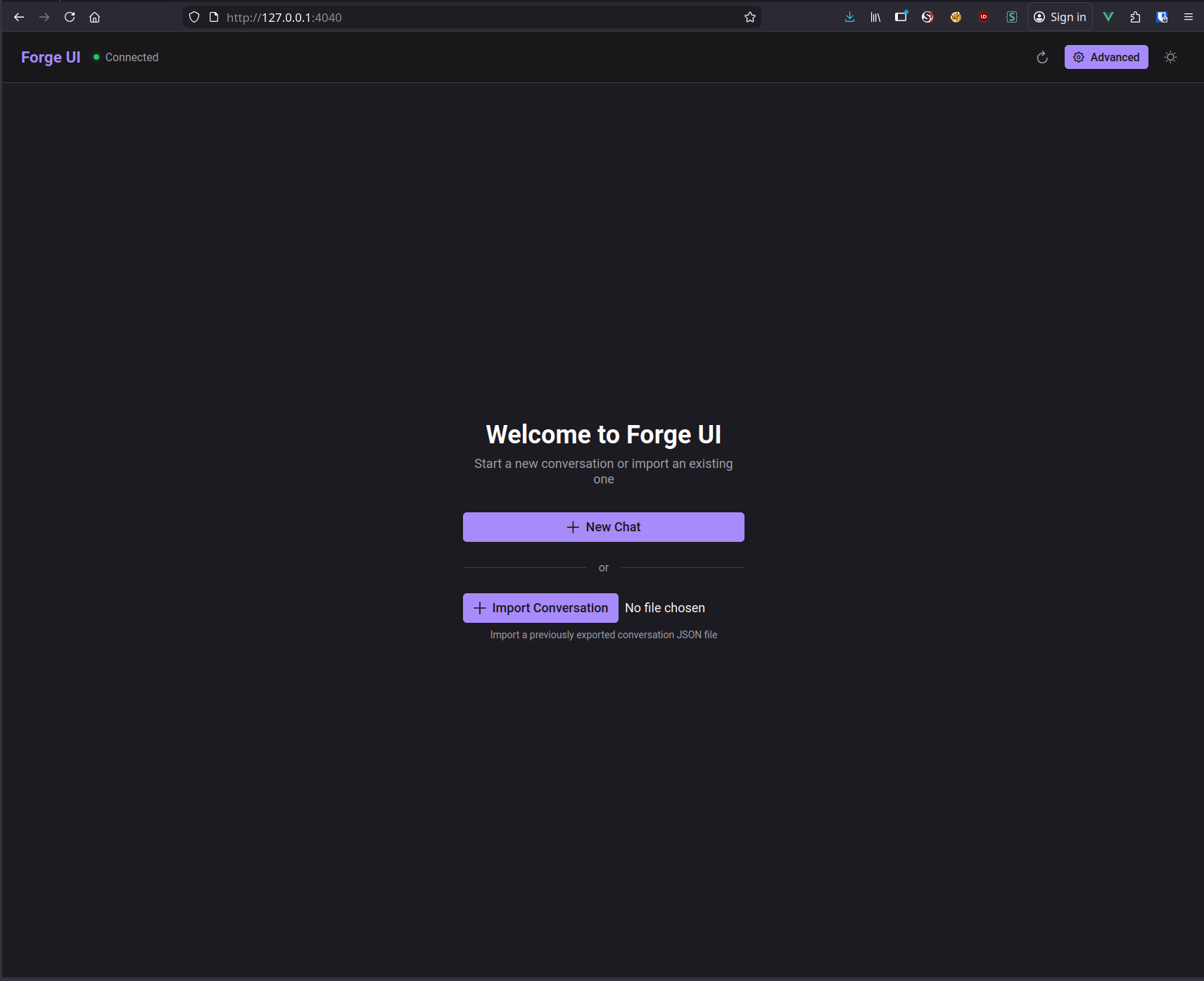
Navigate to http://localhost:4040
You should see the Forge UI welcome screen:
2. Check the Armory Admin
Navigate to http://localhost:4043
Verify the MCP backends are registered:
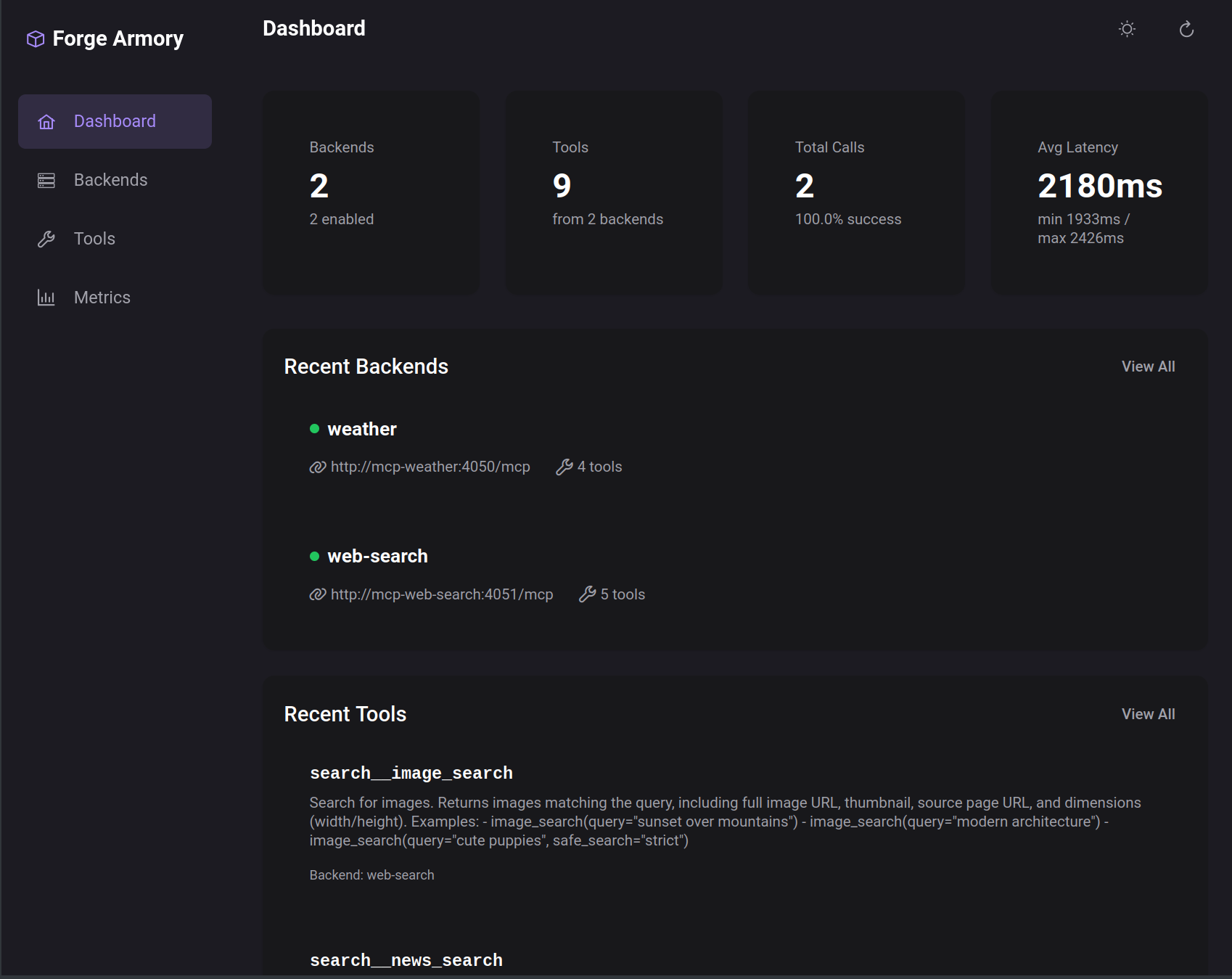
You should see weather and web-search backends enabled.
3. Test a Conversation
In the Chat UI, try asking:
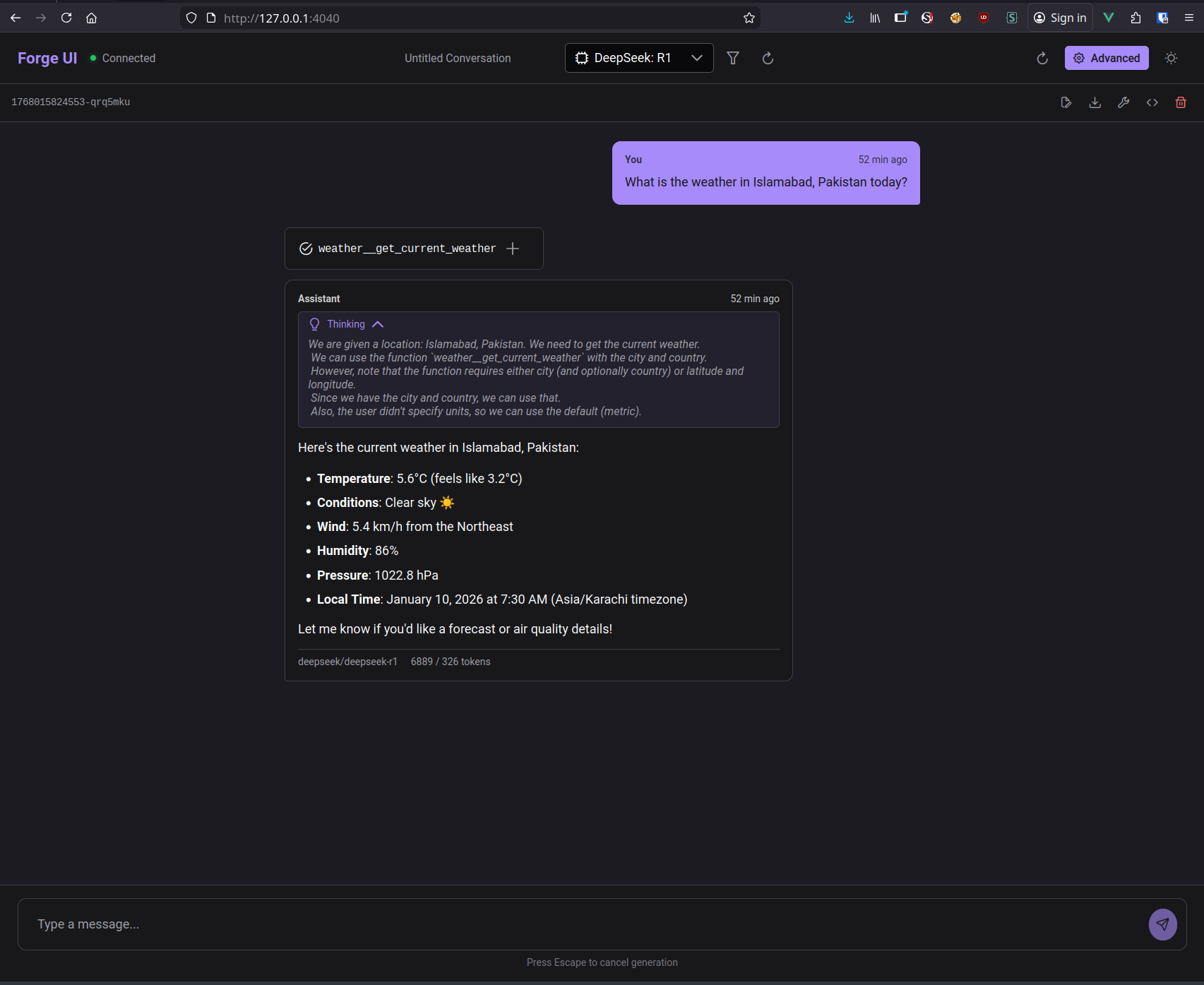
"What's the weather in London?"
The orchestrator will use the weather MCP server to fetch real-time data:
Service URLs
| Service | URL | Purpose |
|---|---|---|
| Chat UI | http://localhost:4040 | Main user interface |
| Armory Admin | http://localhost:4043 | Backend management |
| Orchestrator API | http://localhost:4041 | REST + SSE API |
| Armory Gateway | http://localhost:4042/mcp | MCP protocol gateway |
| Weather MCP | http://localhost:4050 | Weather data server |
| Web Search MCP | http://localhost:4051 | Search server |
Troubleshooting
"Connection refused" errors
Services might still be starting. Wait 30 seconds and try again.
# Check Docker logs
docker compose logs orchestrator

# Or for native dev
tmux attach -t forge
LLM errors / "No API key"
Verify your API key is set correctly:
cat .env | grep API_KEYMake sure at least one LLM provider key is uncommented and has a valid value.
Database errors (Native only)
If you see PostgreSQL connection errors:
# Check if PostgreSQL is running
pg_isready

# Create the database if it doesn't exist
createdb forge_armory

# Run migrations
cd ../forge-armory
uv run alembic upgrade head
Port conflicts
If ports are already in use:
# Find what's using a port
lsof -i :4040

# Either stop the conflicting service or modify ports in docker-compose.yml
Next Steps
Now that you have Forge running:
- Explore the UI - Try different models, test tool calls
- Check the Gallery - See all UI components and features
- Read the Architecture - Understand how components work together
- Browse the Project Board - See what we're working on
- Join development - Pick an issue and contribute!
Model Selection
When using OpenRouter, you can change models on the fly in the UI, or set a default:
# In .env
ORCHESTRATOR_DEFAULT_MODEL=anthropic/claude-sonnet-4
Popular options:
anthropic/claude-sonnet-4- Fast, capable (default)openai/gpt-4o- OpenAI's latestgoogle/gemini-2.0-flash-exp- Google's fast modeldeepseek/deepseek-r1- Reasoning model with thinking